Showing posts with label Lexmark. Show all posts

Friday, October 2, 2009

How to Set Up FTP Printer with UniPrint Gateway?

When you have an FTP printer (read “What are FTP Printers?”), you first need to test it to make sure that all hardware and network connections work. (Read “How to Test FTP Printers?”) UniPrint literature states that when you have an FTP printer, you don’t need to install the UniPrint Print Server component; you just need to install the UniPrint Spool Server component.

After you install UniPrint Spool Server, start the management console. We are using the latest version (version 6.1.5) for our demonstration.

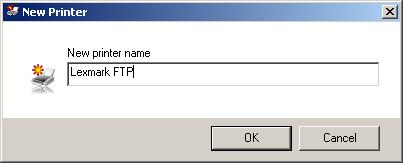
On the management console, click the New Printer button. It will only create FTP printers. Give it a name, like, “Lexmark FTP” since we are using a Lexmark T630 printer after our little experiment on testing FTP printers.
Then, a window titled “New Printer Properties” pops up. The only important information at this point is in the “FTP Settings” tab. Fill in the IP address of our Lexmark printer (192.168.1.10), and the User ID, which is “anonymous” for our Lexmark printer. And we know that from our little experiment, this account doe not require a password, so we’ll leave the “Password” and “Confirm Password” fields blank. If you printer model requires a password, then fill in these two fields accordingly.

Click OK, and, voila, you’ll see our newly created FTP printer shows up in the management console.


Click here to see a complete list of articles


To contact us: uniprint.user@gmail.com.


Friday, September 25, 2009

How to Test FTP Printers?

We talked about what FTP printers are. But how do you know that a printer is an FTP printer? Or a better question, how do you know that an FTP printer is actually working?

Essentially, the question is: How to test FTP printers? The following steps show you how:

Let’s assume:

  1. we have a Lexmark printer model T630, which is supposed to be an FTP printer;
  2. we are running Windows (any newer version of Windows) on our PC, and
  3. the Lexmark T630 printer is connected to our Windows PC not via a direct cable, but via a network path.

Let’s further assume that the machine name for this Lexmark T630 is LEX630, and its ip address is 192.168.1.10. We need either piece of information to print to it.

  1. Open a command Windows. (To do this: Click Start button -> Run, and type in cmd in the open box, and click OK.)
  2. Next, we need to reassure ourselves that our PC can actually “talk” to the printer. We use the ping command.

    In the command window, type
      ping LEX630

    If it comes back to say something like
      Ping request could not find host LEX630
    it means that perhaps our name server is not set up properly, but let’s not worry about it now.

    Instead, we turn to the printer’s ip address, which we try to ping:
      ping 192.168.1.10

    If it comes back with:
      Pinging 192.168.1.10 with 32 bytes of data:
      Reply from 192.168.1.10: bytes=32 time<1ms TTL=254
    that means success; our PC and “talk” to the printer directly. But if it comes back with:
      Pinging 192.168.1.10 with 32 bytes of data:
      Request timed out.
      Request timed out.
    that means problems, usually hardware and/or network problems. Troubleshooting it is beyond the scope of this article. We just assume that we are successful in establishing connection between our PC and the printer, and we move on with our experiment.

  3. Next, let’s further assume that we have a valid pdf file called test.pdf in our temp folder. Still inside the command window, type:
      cd %temp%

    The %temp% is a variable that represents the actual path to our temp folder. Windows will translate the variable %temp% and set our default folder to our temp folder. And we can do the test to make sure that test.pdf is actually here. Type:
      dir test.pdf

  4. Now it’s the exciting part: We are actually going to ftp into the printer. Still in the same command window, type:   >ftp 192.168.1.10

    It comes back with:
      Connected to 192.168.1.10
      220 Lexmark T630 FTP Server 55.0.39 ready.
      User:

    Please note that the exact wording may vary on different implementations of the FTP server by different vendors.

  5. Here it’s asking for a user account. FTP printers should have an anonymous account, so type “anonymous”. This account usually does not require a password. We should see something like this:
      230 User anonymous logged in.

    Some implementations do require a password, a common password to use is “guest”. If not, the password is usually given in the response after we typed in “anonymous” like:
      Use welcome as password.

    If we see the prompt becomes
      ftp>
    that means we have successfully logged in to the FTP server (or the printer in our case).

  6. Here comes the meat: we are to transfer test.pdf file directly to the printer. In the ftp prompt, type:
      ftp> put test.pdf

    We should see responses like:
      200 PORT command successful.
      150 Opening ASCII data connection.
      226 Transfer complete. 9375 bytes sent.

    The printer then prints out our pdf file.

  7. To exit the ftp program, type “bye” at the ftp prompt.

And this concludes our little experiment on testing FTP printers.


Click here to see a complete list of articles


To contact us: uniprint.user@gmail.com.


Friday, September 18, 2009

What are FTP Printers?

What is FTP?

FTP stands for File Transfer Protocol, which is one of the standard protocols used on the internet. FTP is specifically for transferring files from one machine to another over the internet originally, now via any network.

Some printer vendors (like HP and Lexmark) manufacture FTP printers. These printers have a little built-in FTP engine that accepts PDF (Portable Document Format) file as print jobs and prints them.

The printers will also have a built-in pdf engine to render print jobs to actual physical paper output. Thus individual computers do not need to have the printer driver for that particular model installed in order to print properly.

Based on a similar principle, UniPrint’s universal printer driver basically converts (through some third-party PDF engine) the output of a document’s printing function to a pdf file and sends it to the printer for rendering. The 3rd-party pdf engine UniPrint driver uses is Amyuni (for all versions of Uniprint's core products) and Foxit (for the newer versions of UniPrint's core products).

How do you know that a printer is an FTP printer? Or a better question, how do you know that an FTP printer is actually working?

Essentially, the question is: How to test FTP printers? Read on.


Click here to see a complete list of articles


To contact us: uniprint.user@gmail.com.