Showing posts with label lpr lpd printing. Show all posts

Sunday, February 14, 2010

Printing from Unix to Windows (Part 2)

In Part 1, we talked about how to print from any non-Windows machine (such as a Unix machine) that supports the lpr protocol to a printer accessible from a Windows system.

When a print job comes from a non-Windows system, it can be non-formatted (i.e. plain text, or it can be formatted (e.g. a PCL file or a PostScript file). When the file arrives at a Windows system (your XP machine), the lpd does some formatting. For example, if a text file contains long lines, it will wrap a long line at its right margin instead of truncating the long line at the right margin. That’s nice.

However, if the file is already formatted in certain format, you probably don’t want Windows to add format to it again. To achieve this, all you need to do is to navigate to the hive
HKEY_LOCAL_MACHINE\SYSTEM\CurrentControlSet\Services\LPDSVC\Parameters, and add a “new -> DWORD value” key named “SimulatePassThrough”, and set its value to 1.

After adding this key, you have to restart the “Printer Spooler” services, which will also restart the “TCP/IP Print Server” service. Just click OK.

This regkey tells Windows’ lpd not to add any formatting to the file, just simply pass it through to the printer.


Click here to see a complete list of articles


To contact us: uniprint.user@gmail.com.


Sunday, February 7, 2010

Printing from Unix to Windows (Part 1)

Last time we talked about LPR/LPD Printing. This time, we’ll see how to put it into practical use.

Let's say you have a Unix machine and an XP machine, and you have an HP printer locally attached to your XP machine. You want to print a file on your Unix machine, but you don’t want to disconnect your HP printer from your XP machine and connect it to your Unix machine just to print that file, and then reconnect the printer back to your XP machine. Is there a better way of doing this?

Yes, this is how:

First, you need to add certain windows component on your XP machine to make this happen: On your XP machine, click Start -> Control Panel -> Add or Remove Program, then click "Add/Remove Windows Components" on the left pane.

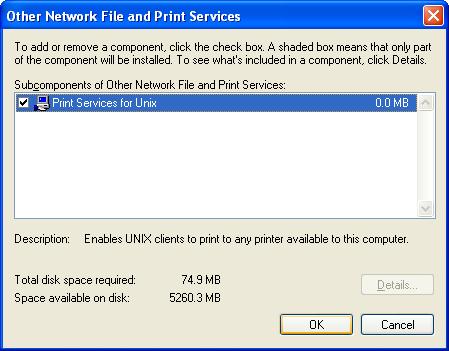
Scroll down to “Other Network File and Print Services”, click the Details button.

Unix to windows printing

Select “Print Services for Unix”, then click OK.

Unix to windows printing

Click “Next”, and it will start installing this component. Depending on what other components you have installed on your system, it may ask you for the Windows CD.

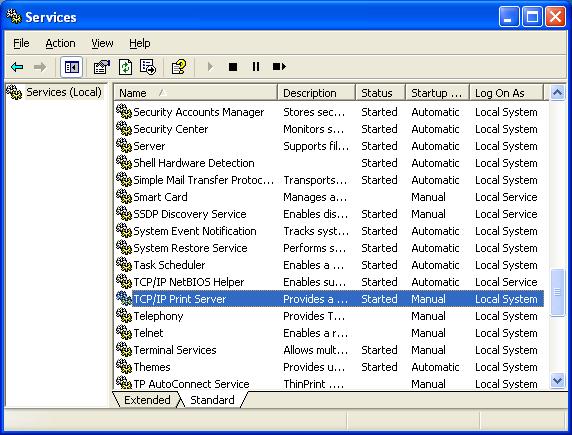
Next, click Start -> All Programs -> Administrative Tools -> Services. Scroll down and you should see the “TCP/IP Print Server”. This is the new service installed. It is started., and the start mode is manual.

Unix to windows printing

You may want to change this service to start automatically every time you start your system. To do so, highlight “TCP/IP Print Server” and right-click, and select Properties from the context menu. Change the startup type to Automatic, and click OK.

Unix to windows printing

Now you have the lpd (line printer daemon) running. Next is to set up a print queue.

Click Start -> Printer and Faxes. Let’s say you have a printer called “HP LaserJet 4000” locally attached to your XP machine. Remove the spaces in the printer name by renaming it to “HPLaserJet4000” because Unix doesn’t like printer names with spaces.

That's it! The last thing you need to know is the machine name or the ip address of your machine. If you don’t know the info, read this article to find out how. Fill in the name of the printer or print queue on that server.

Let's say if your machine's ip address is 192.168.1.123.

Next, you have to define your HPLaserJet4000 printer on your Unix machine. Once done, you can start printing from Unix using the lpr command. The syntax varies with different flavors of Unix/Linux. The command may look something like this:
lpr -PHPLaserJet4000 myfile.txt

You can even do the test using another windows machine. On another windows machine, open up a command window (Start -> Run, then type cmd). In the command window, type:
lpr –S 192.168.1.123 –P HPLaserJet4000 myfile.txt

If it complains that "Host 192.168.1.123 is unknown", try pinging your XP machine. If it fails to ping your XP machine, most likely it's the firewall settings on your XP machine that's preventing this. Start -> Control Panel -> Windows Firewall. You probably will have to adjust your firewall settings.

It’s worth noting that this works not just for any locally attached printer (via the LPT1: port, or a USB port), it also works for any printer accessible from your XP machine, be it a TCP/IP printer, or a printer attached to a print server.

That means, you have this set up in an office environment so that printouts from any application running on a non-Windows system (such as Unix/Linux systems or any legacy systems) can be re-directed to and printed on a Windows system – as long as the non-Windows system has the lpr capability.

Part 2


Click here to see a complete list of articles

To contact us: uniprint.user@gmail.com.


Saturday, January 30, 2010

LPR/LPD Printing

What is LPR/LPD?

LPR/LPD is a printing protocol that runs over TCP/IP. Originally implemented for BSD UNIX, its use has spread into other platforms such as AS/400 and legacy mainframe systems. It has essentially become a de-facto industry standard for cross-platform and platform-independent printing, which is a huge advantage of LPR/LPD printing.

The specifications for LPR are defined by the Internet Engineering Task Force (IETF) in Request for Comment 1179 (RFC-1179).

LPR stands for Line Printer Request. It refers to the process that sends print jobs to a remote printer or print queue. It is requesting the service of a print server, so it is the client side of LPR/LPD, and thus is often called the 'LPR client'.

LPD stands for Line Printer Daemon. It refers to the process that accepts print jobs from the LPR client. It is providing a service, so it is the server side of LPR/LPD, and thus is often called the 'LPD server. A daemon is a process running on a UNIX machine, providing services.

How does LPR work?

LPR client sends a request to port 515, the standard port for the LPR/LPD protocol. And the LPD server listens on the same port 515.

When the LPR client sends a print job to the LPD server, it send two files: a data file (the actual data to be printed), a control file.

The data file contains the actual data to be printed. It can be binary of text, depending on the actual format of the print file, or the application that generates the print file.

The name of the data file should start with "dfA", followed by a three digit job number, then followed by the host name that has constructed the data file.

The control file contains information that describes the data file (such as the format of the print data file, e.g., postscript, plain text, FORTRAN carriage control, etc.) and what to do with the data file (such as printing banner page, delete after print, or email after print).

The control file is a plain text file, and its file name should start with "cfA", followed by a three digit job number, followed by the host name which has constructed the control file.

Obviously, the "d" in the "dfA" prefix means data, and the "c" in the "cfA" prefix means control.

RFC-1179 does not impose on the order of the two files to be sent; i.e., one can send the control file first, or the data file first. However, some implementations may stipulate one way or the other, e.g., data file first, followed by control file.

In the future, we will show you how to print from non-windows systems to windows systems using this LPR/LPD protocol.


Click here to see a complete list of articles


To contact us: uniprint.user@gmail.com.